This tutorial is for learning about Cloudflare deployment, not for commercial use.
Register with Cloudflare
Cloudflare is well known for its CDN, and also provides reverse proxies, tunneling, SSL, and other services that can improve a website. Its individual free plan was sufficient for the everyday learning use described here.
Among its services are Workers and Pages. Pages can deploy projects with capabilities beyond a simple static host. In this tutorial, we use it to deploy a VLESS node service.
Visit Cloudflare and select the free plan near the bottom of the page.
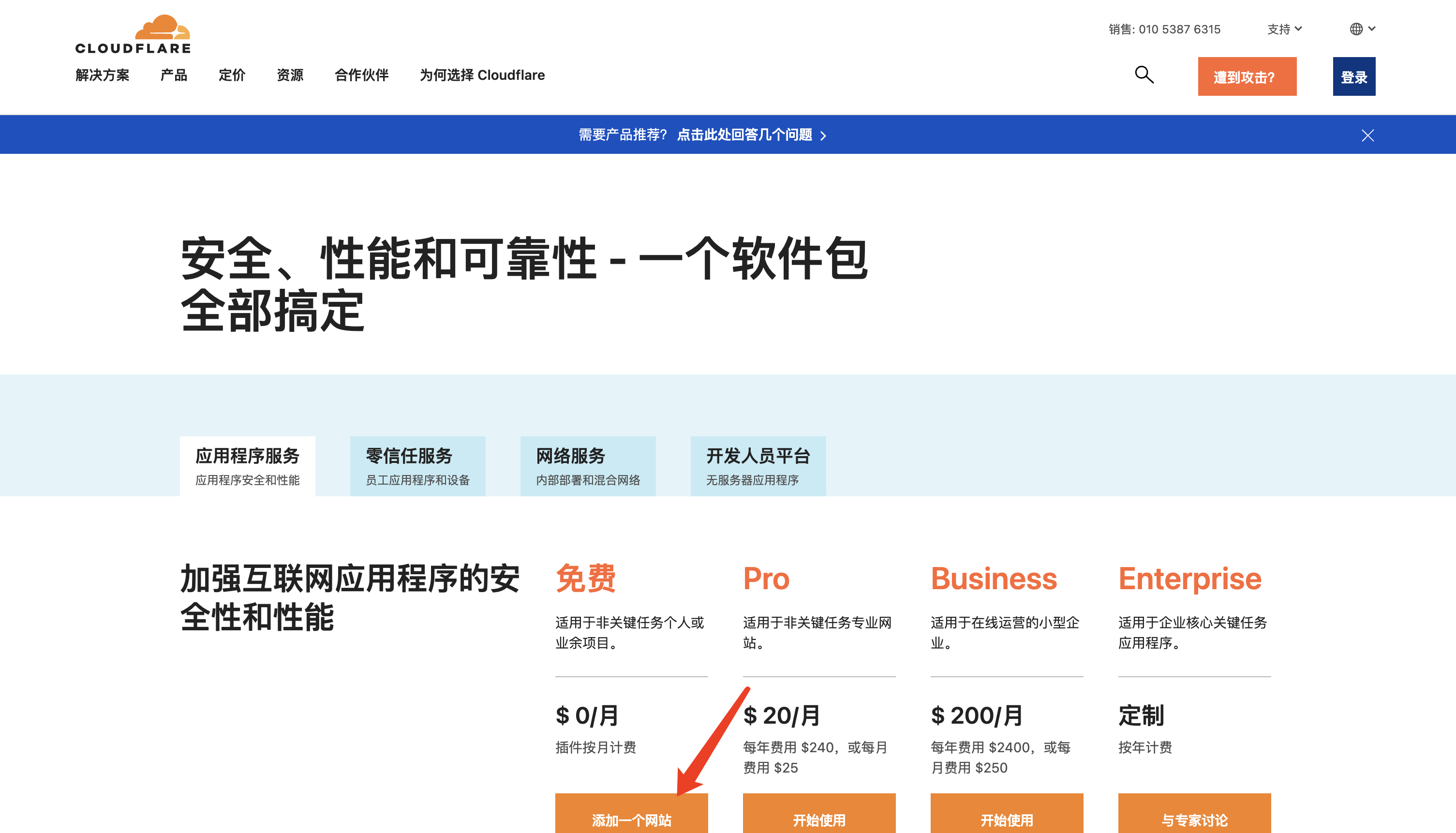
Registration is straightforward, so I won’t cover every step. Remember to verify your email.
Import the project into GitHub
Sign in to GitHub and choose the option to import a repository.
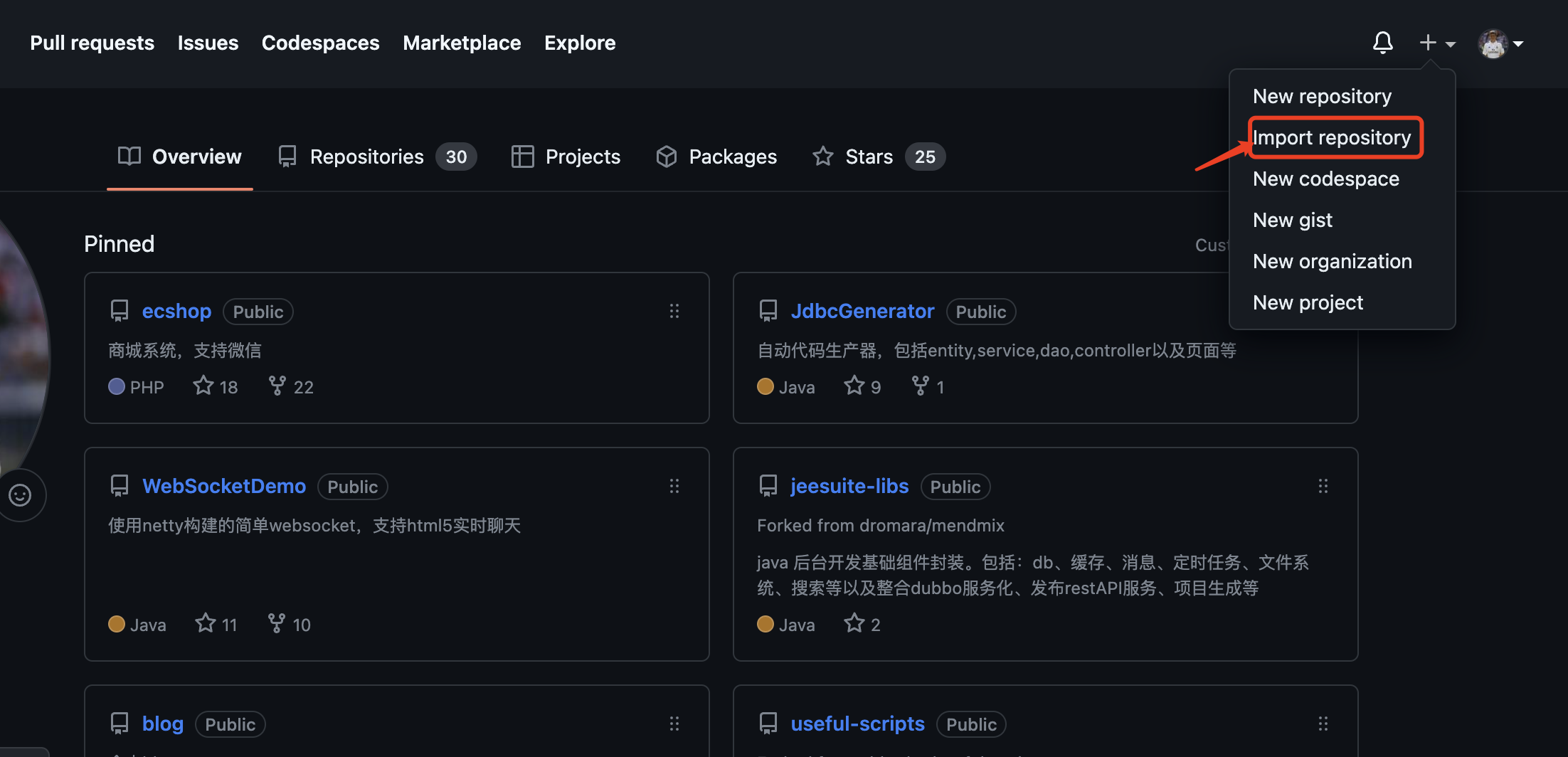
Choose a name and enter this source repository URL: https://github.com/yezilong9/tunnel.git.
This is based on the open-source edgetunnel project.
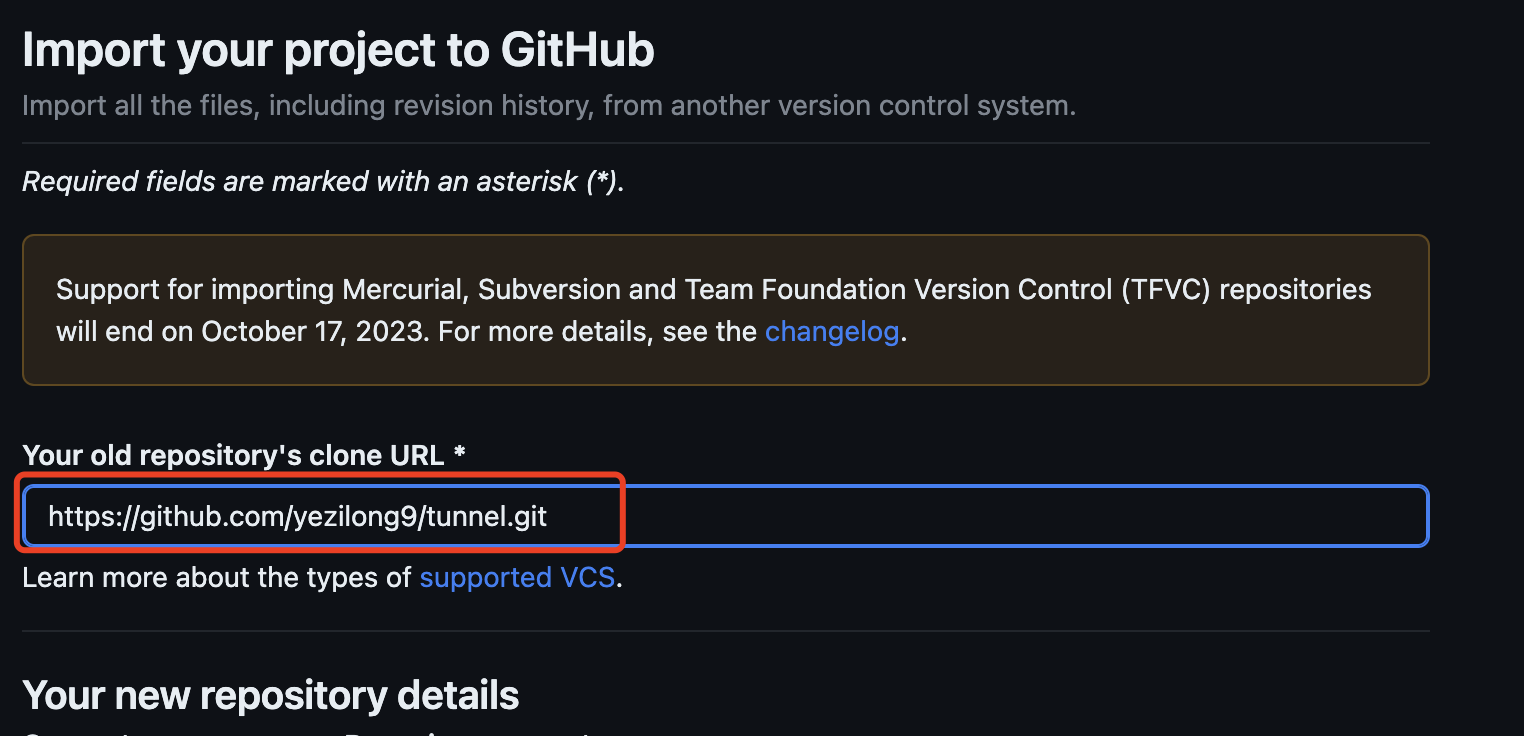
Click Begin import to complete the import.
Deploy from Cloudflare
Open the Cloudflare dashboard.
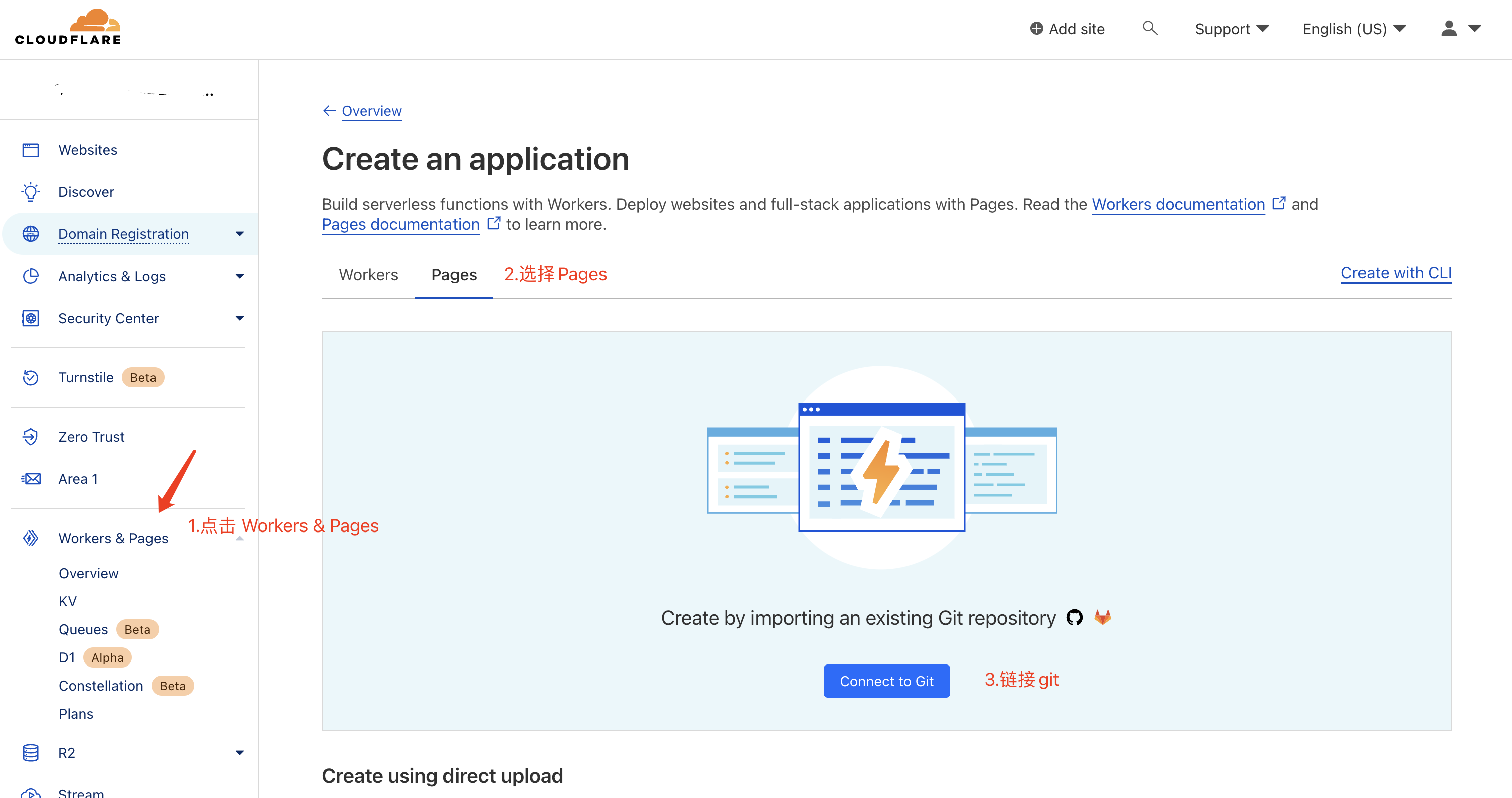
- Select Workers & Pages in the sidebar.
- Switch to the Pages tab.
- Click Connect to Git.
- Select the repository you just created.
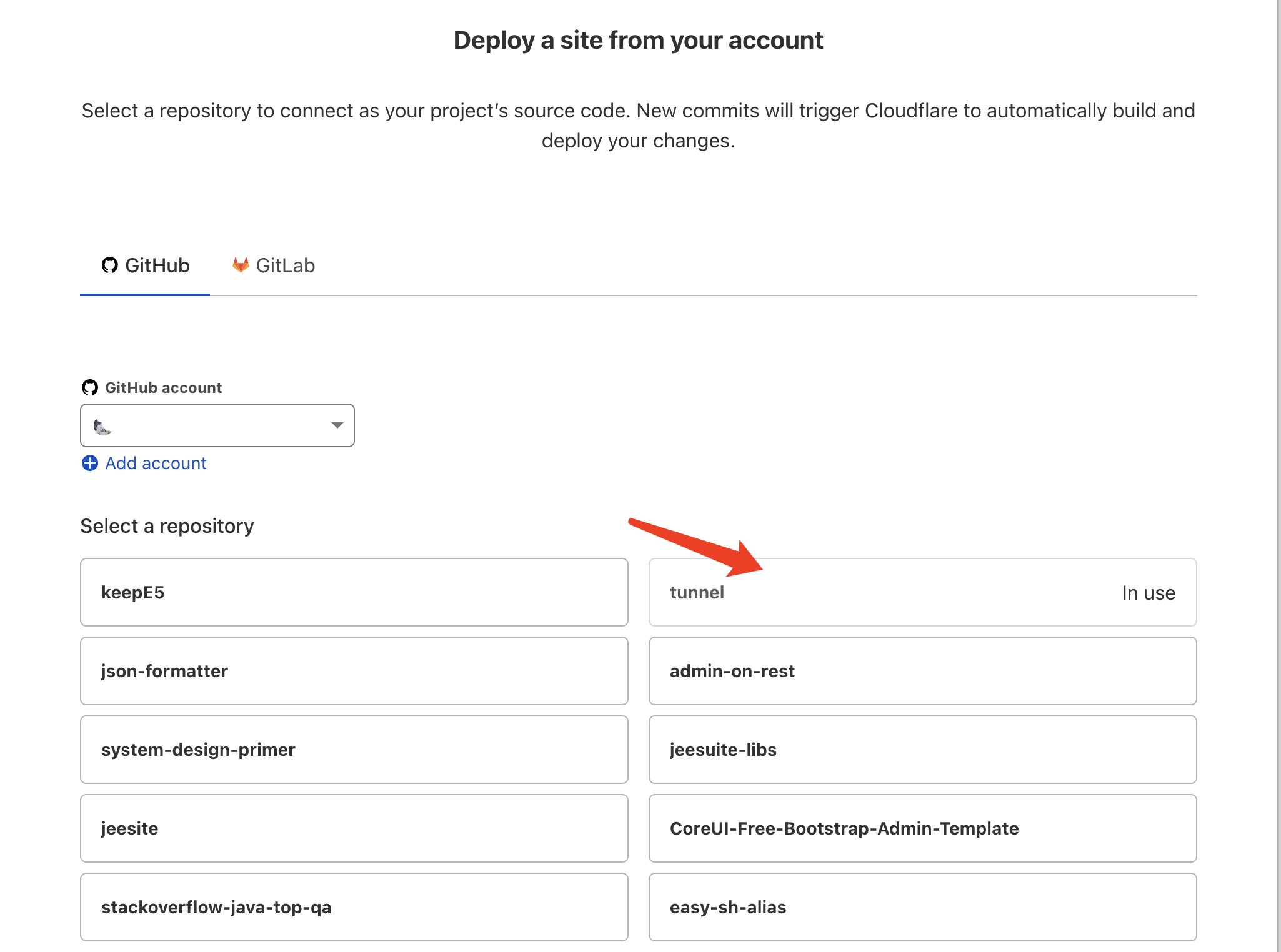
- Enter a project name of your choice, preferably without protocol names such as xray, vmess, vless, ss, or trojan. Set Production branch to online. Remember to choose the online branch, or the application will fail to start.
- Under Build settings, enter the following values.
| Setting | Value |
|---|---|
| Build command | npm run cf-page-vless |
| Build output directory | dist/apps/cf-page-vless |
| UUID | Generate one with a UUID tool |
| NODE_VERSION | 18 |
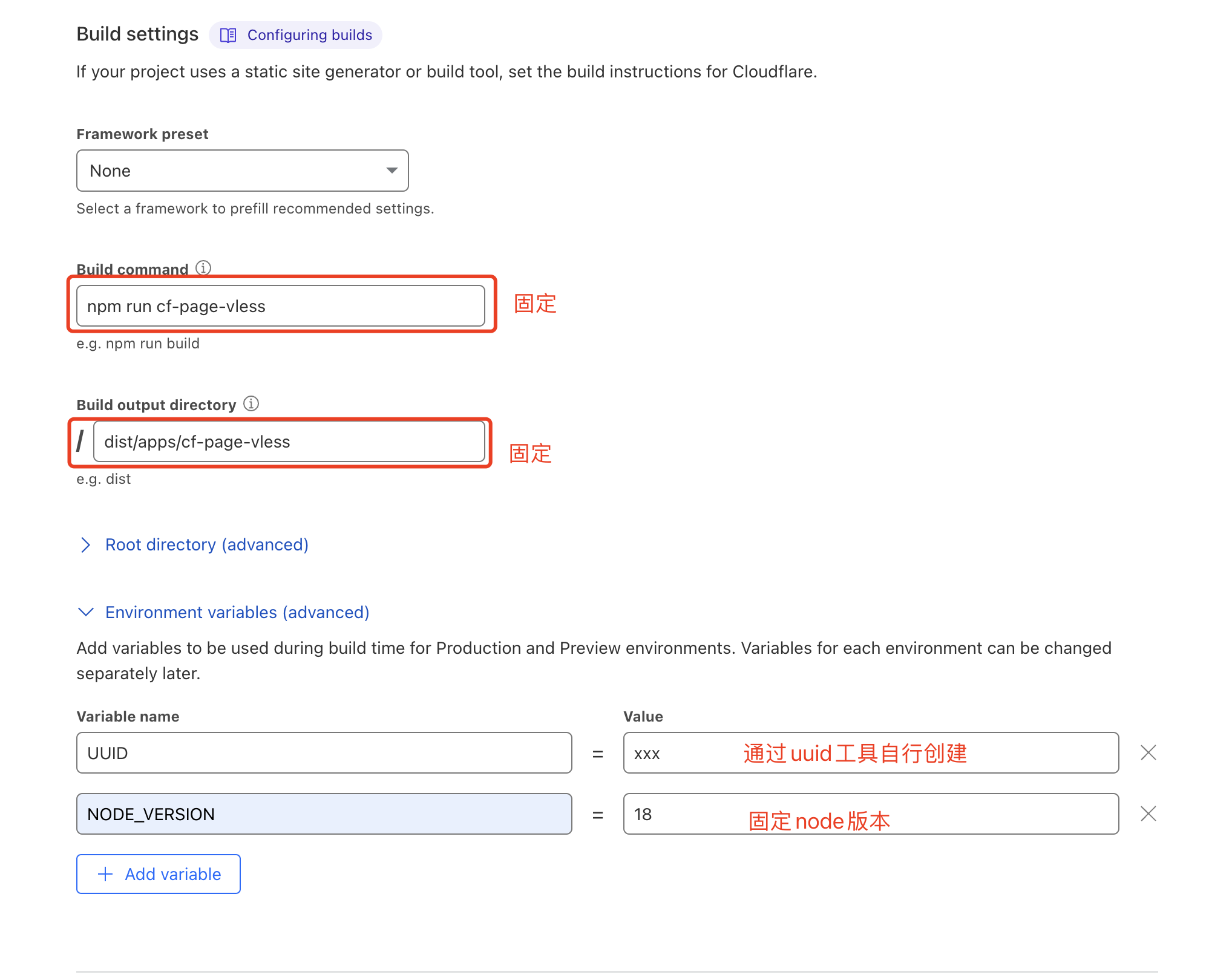
Keep the UUID: it is used as the password for your connection.
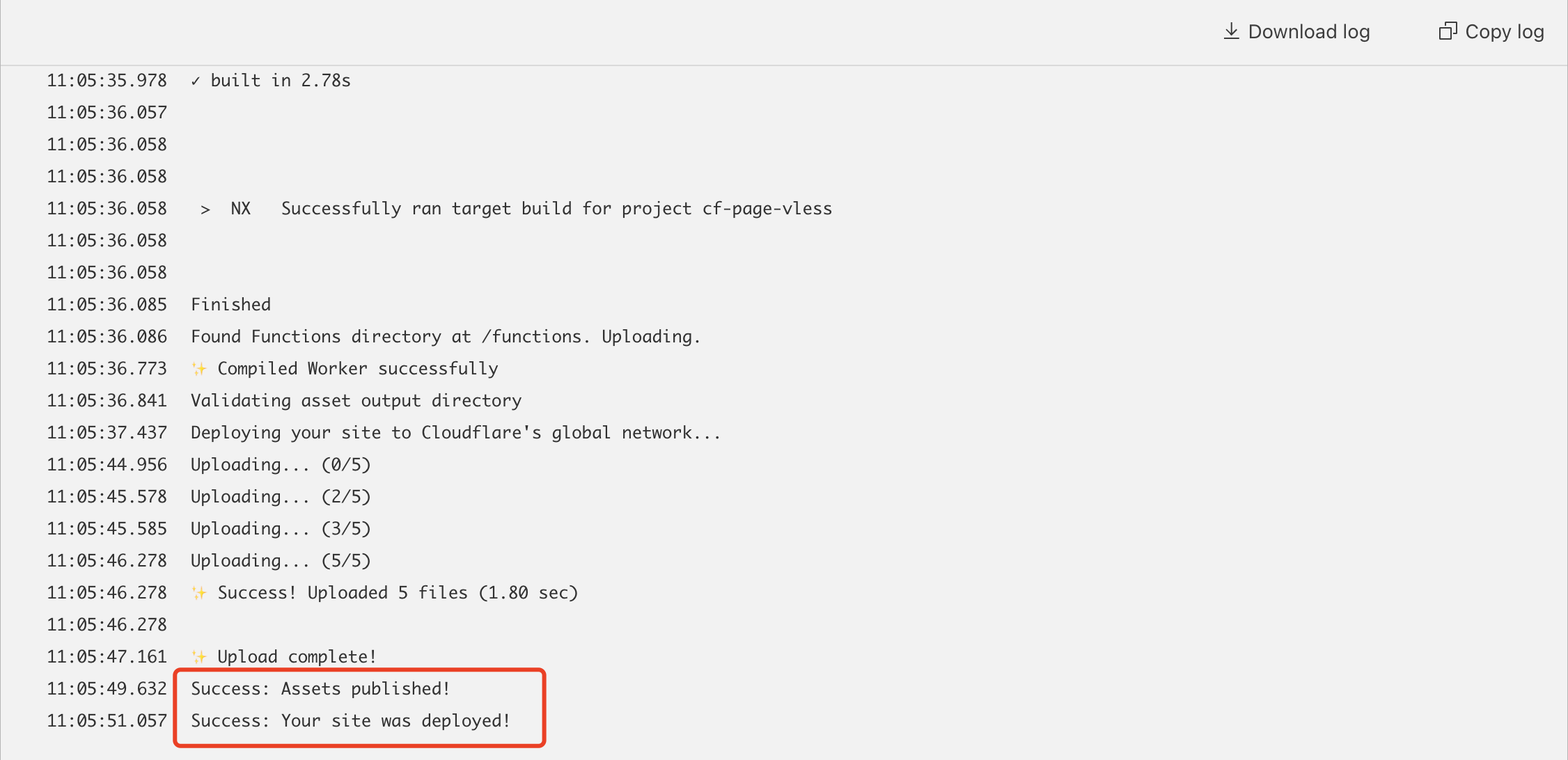
- Click Save and Deploy. Wait around three to five minutes for deployment to complete.
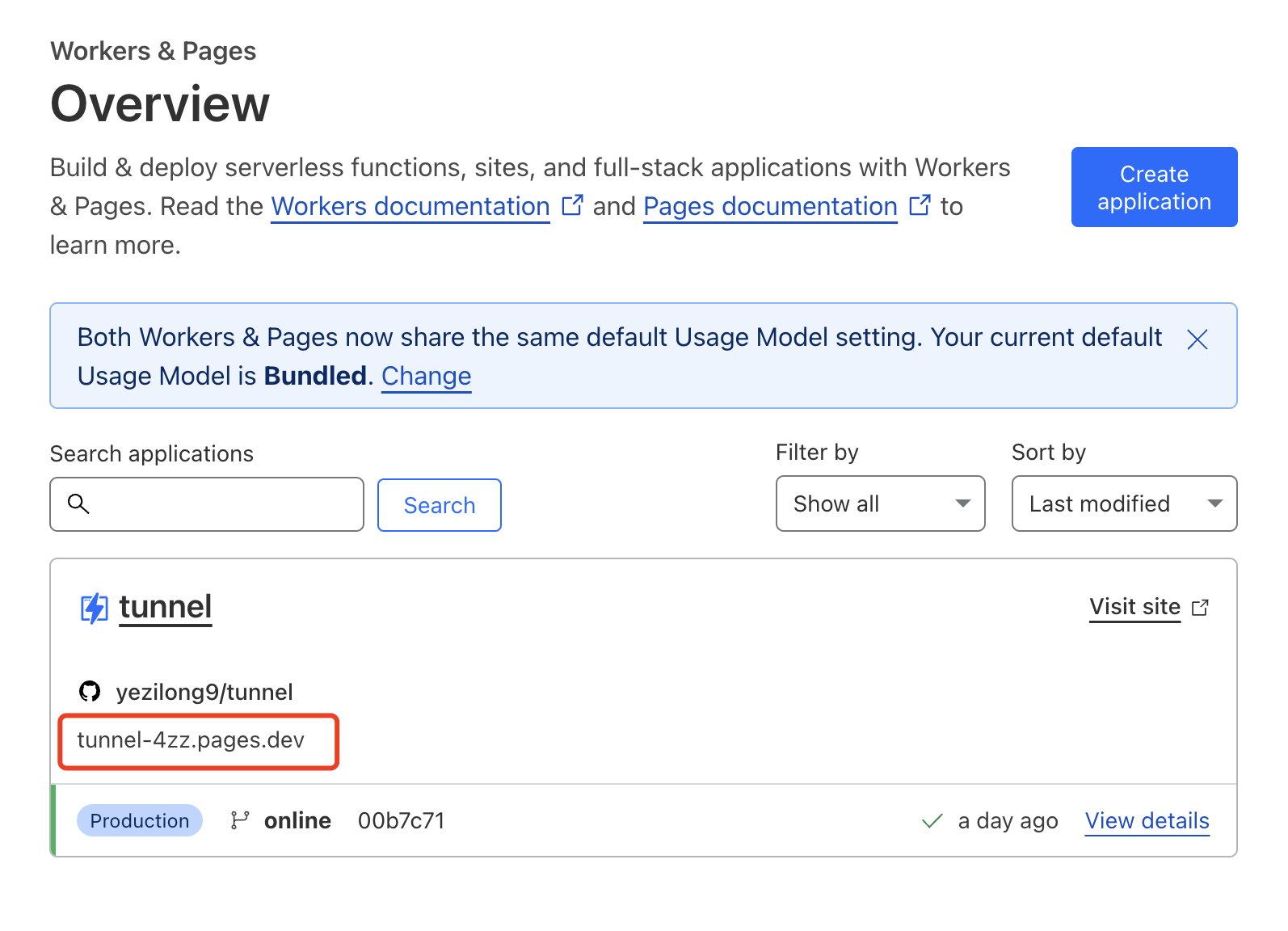
- Return to Pages, copy the project's URL, and open it in a browser.
- If the browser displays a username/password prompt, enter the generated UUID as the username. Use the V2ray sharing option to generate a VLESS connection link.
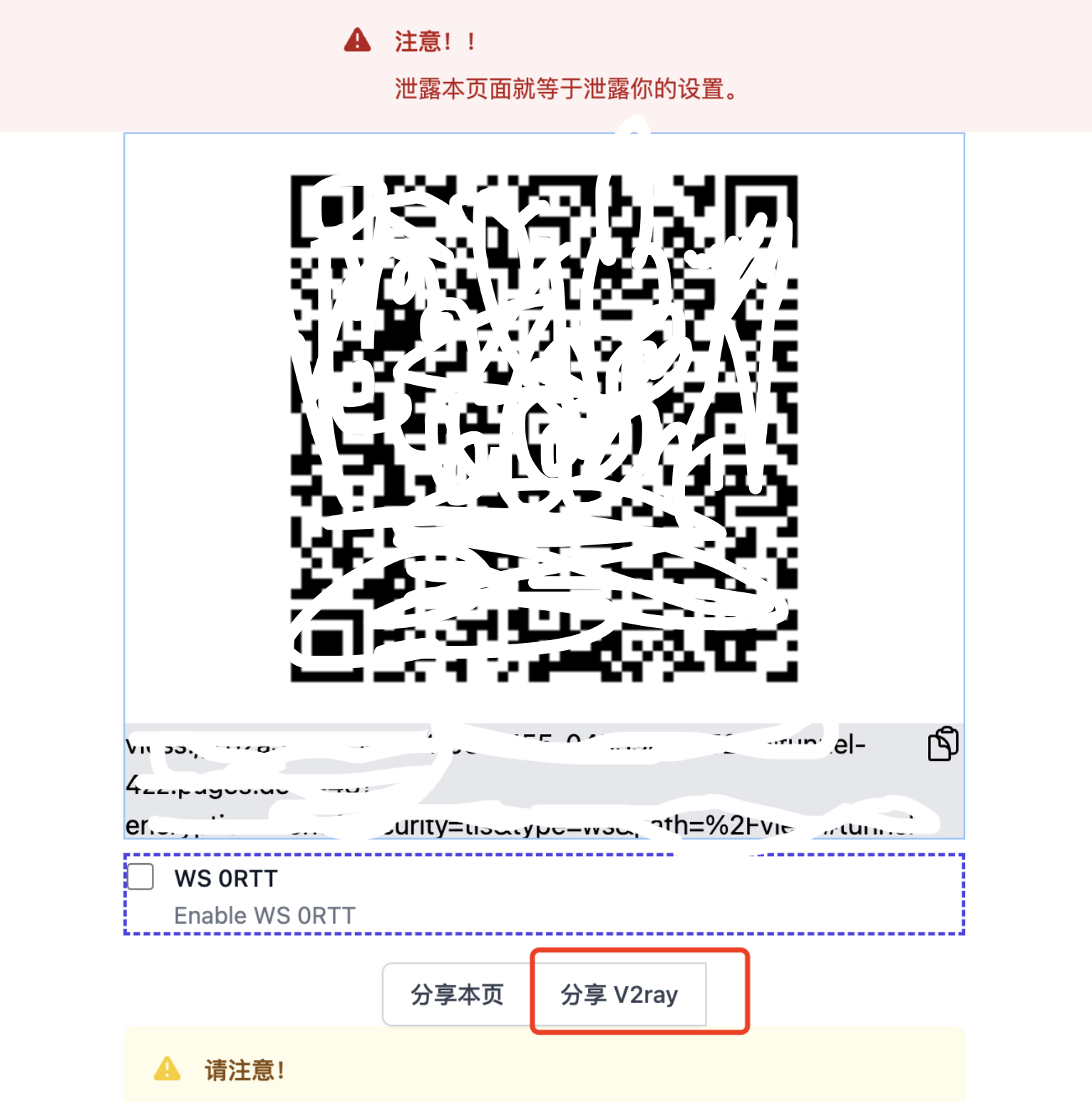
- Save the connection link, open a VPN client on your phone that supports VLESS, and use the connection to access the internet.
That completes the deployment. On Cloudflare’s free service, Workers and Pages together must not exceed 100,000 requests a day. I feel that is more than enough for looking up information and learning, as long as you are not watching videos.
A final warning
Finally, do not share your account or connection links with others, or use them for profit. Doing so may violate criminal law and have serious consequences.